
The Notification Center helps you stay informed about documents requiring action, access requests, documents ready for download, and updates related to contract processes all in one place.
You can access the Notification Center by selecting the bell icon on the desktop topbar. If there are new or unread notifications, the bell icon will display the number of available notifications.
The Notification Center provides several notification categories to help you find the information you need more easily, including All, Unread, and Needs your action. You can also filter notifications by category and mark notifications as read.
Here is a guide on how to use the Notification Center to view and manage notifications in Mekari Sign.
A. How to Access the Notification Center
- Log in to your Mekari Sign account.
- Then click the ‘bell’ icon at the top right as shown in the following view.
You will then see the Notification Center display containing all incoming updates.
B. Overview of the Notification Center
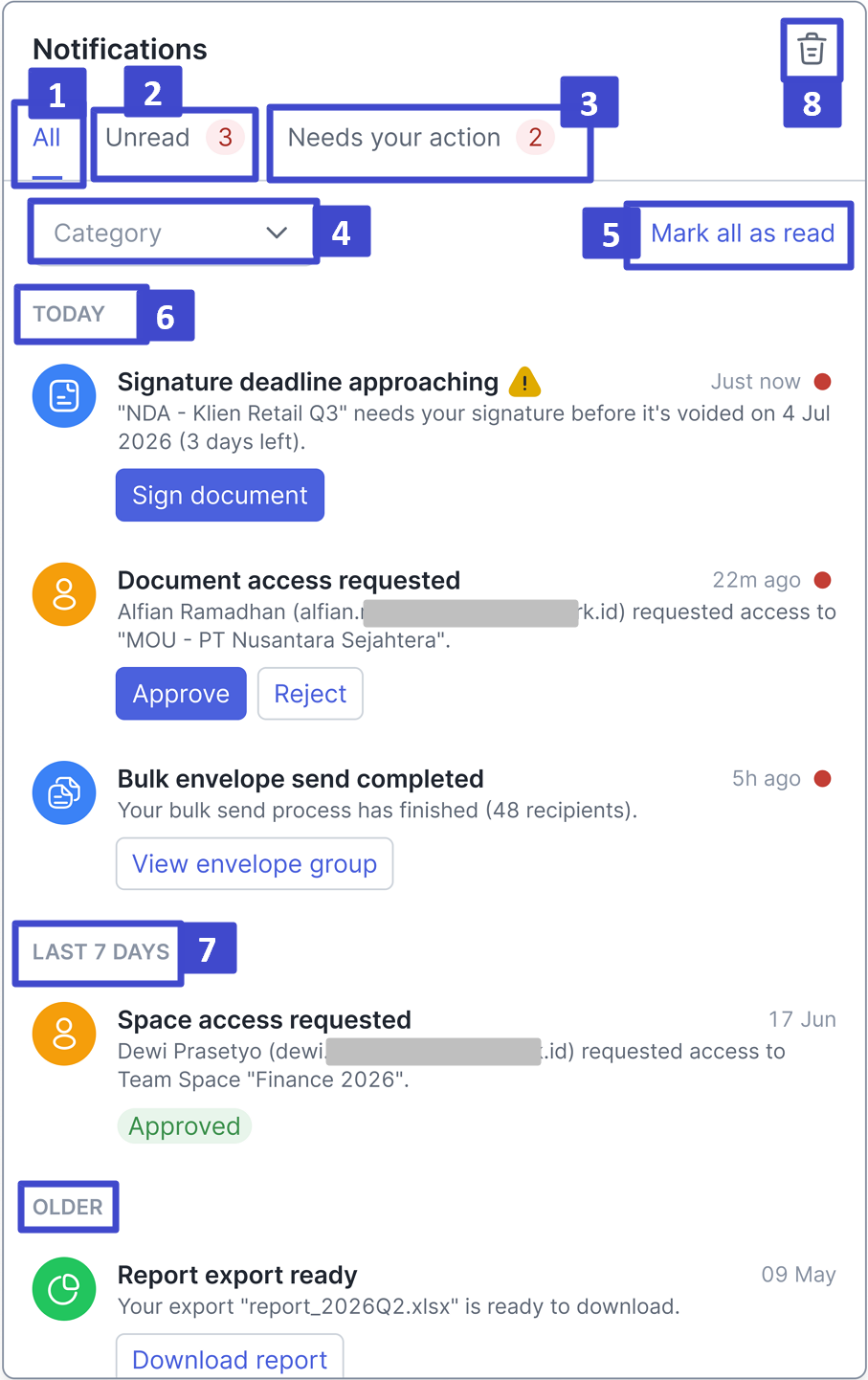
| No. | Feature Name | Description |
| 1 | All | Displays all available notifications. |
| 2 | Unread | Displays notifications that have not been read. The number on the tab shows the count of unread notifications. |
| 3 | Needs your action | Displays notifications that require action from the user. The number on the tab shows the count of notifications needing action. |
| 4 | Category | Opens a multi-select checklist consisting of Select all and four category groups: Documents, Access & permissions, Contracts, and Process. Users can select multiple categories simultaneously to broaden the notification filter. |
| 5 | Mark all as read | Marks all unread notifications as read in one action, regardless of the active Category. |
| 6 | Today | Displays notifications received today. |
| 7 | Last 7 Days | Displays notifications received in the last 7 days. |
| 8 | Clear all notifications | Deletes all existing notifications. |
- Notifications are stored for 14 days by default, then automatically deleted from storage.
- Download ready notifications are an exception and are stored for 7 days, matching the 7-day file retention period on the Download Page. Therefore, Download ready notifications will not remain available after the referenced file expires.
C. Notification Types, Category Groups, and Routing Logic
| Notification Type | Category | Trigger | Main Action | Destination / Behavior | Requires Action? |
| Document needs to be signed | Documents | User receives a document that requires a signature | Sign document | Opens document details for signing. Notification is deleted when opened. | Yes |
| Document needs approval | Documents | User receives a document that requires approval | Review document | Opens document details for approval. Notification is deleted when opened. | Yes |
| Document access request | Access & Permissions | Someone requests access to a document | Approve / reject | Can be approved or rejected directly from the notification (inline). Notification is marked as read and remains in All. | Yes |
| Personal/team space access request | Access & Permissions | Someone requests access to personal or team space | Approve / reject | Can be approved or rejected directly from the notification (inline). Notification is marked as read and remains in All. | Yes |
| Download ready | Process | Items prepared on the Download Page change status to Ready to Download. Applies to all item types on the Download Page, including Document report (CSV), Document summary (CSV), Signing insight (CSV), Bulk download document (ZIP), Document group download (ZIP), and Big document download (PDF). | Download | Opens the Download Page in a new tab. Notification is deleted when opened and follows the 7-day retention period as explained in Section B/F. | No |
| Contract expiration reminder | Contracts | Contract approaching expiration date | View contract | Opens the contract dashboard. Notification is deleted when opened. | No |
| Document completion risk – maker, first reminder | Documents | Document nearing completion risk deadline and not yet completed (see Section E) | Send reminder / Review document | Send reminder can be done directly from the notification (inline). Notification is marked as read and remains in All. Selecting Review document directs the user to the document and deletes the notification when opened. | No |
| Document completion risk – signer, first reminder (signature deadline, D-3) | Documents | Signer has not signed the document and the signature deadline is D-3 from the document creation time | Sign document | Opens document details for signing. Notification is deleted when opened. | Yes |
| Document completion risk – approver, first reminder (approval deadline, D-3) | Documents | Approver has not approved the document and the approval deadline is D-3 from the document creation time | Review document | Opens document details for approval. Notification is deleted when opened. | Yes |
| Document completion risk – signer, final reminder (D-1) | Documents | Signer still has not signed the document and the signature deadline is D-1 from the document creation time | Sign document | Opens document details for signing. Notification is deleted when opened. | Yes |
| Document completion risk – approver, final reminder (D-1) | Documents | Approver still has not approved the document and the approval deadline is D-1 from the document creation time | Review document | Opens document details for approval. Notification is deleted when opened. | Yes |
D. Direct Access Request Actions in Notifications
For document access request and personal/team space access request notifications:
If you have permission, you can directly approve or reject the request through the notification.
The approve/reject process is performed directly without confirmation.
If you do not have permission, you will not receive actionable access request notifications.
If the request has been handled by another user with permission, the notification will display the latest request status (e.g., an "Approved" badge, as shown in the design for completed space access requests).
The system must prevent double approvals or rejections.
If the action is successful, the system displays success feedback, marks the notification as read, removes it from Unread and Needs your action, but keeps it visible in All as a handled request. This is an inline action flow as explained in Section A, and differs from deletion through navigation. You can still manually delete the notification from All if you no longer want to see it.
If the action fails, the system displays error feedback and the request remains actionable if a retry option is available.
E. Document Completion Risk Logic
Document completion risk notifications are sent when an agreement is not completed and meets one of the following conditions:
| Condition | Notification Timing |
| Before the configured contract start date | D-7 |
| Before the configured contract end date | D-7 |
| Signer/approver has not taken action and the deadline is approaching | D-3 — first reminder |
| Signer/approver still has not taken action and the deadline is one day away | D-1 — final reminder |
a. Notification Recipient Behavior
| Recipient | Notification |
| Document Maker | Receives the "Document completion risk - maker" notification to check the document, view process details, or send reminders. |
| Signer who has not taken action | Receives "Signature deadline approaching" on D-3 as a reminder that the signature deadline is near. |
| Approver who has not taken action | Receives "Approval deadline approaching" on D-3 as a reminder that the approval deadline is near. |
| Signer/Approver who still has not taken action on D-1 | Receives a more urgent final reminder. This notification is different from the D-3 reminder and is sent as a separate reminder. |
You will only receive notifications for documents that you actually have access to.
b. Risk Handling
Notifications will not be created if the document is completed before the notification time.
Notifications cannot be used to take action if the document has been voided, declined, deleted, or revoked before you open it.
D-3 and D-1 reminders for the same signer/approver deadline are considered two separate notifications.
The system only prevents the same notification from being sent repeatedly. For example, two D-3 reminders for the same deadline should not be sent. However, the D-1 reminder must still be sent even if a D-3 reminder was previously sent.
If the signer/approver has taken action between D-3 and D-1, then the final D-1 reminder will not be created.
F. 'Download Ready' Logic
According to the Download Page One Pager, an item will have the status Ready to Download after the preparation process in the background (querying, generation, and/or compression) is complete.
| Item Type | Item Name Pattern |
| Document Report (CSV) | Document report [Start date - End date] |
| Document Summary (CSV) | Document summary [Start date - End date] |
| Signing Insight (CSV) | Signing insight [Start date - End date] |
| Bulk Download Document (ZIP) | Bulk download [Date requested] |
| Document Group Download (ZIP) | [Envelope group name] |
| Big Document Download (PDF) | [Envelope name] |
Notification Behavior
The "Download ready" notification is created only for the user who made the request, exactly when the item status changes to Ready to Download.
Only the user who requested the download will receive the notification, according to the user-owned download rows rule on the Download Page.
The notification description must display the item name following the same naming conventions as on the Download Page, so the user can identify which request is ready.
The Download CTA acts as a navigation action. When clicked, the user is directed to the Download Page in a new tab and the notification is removed from the Notification Center, in accordance with Section G.
The Download ready notification has a validity period of 7 days, unlike the usual 14 days for other notifications. This period aligns with the 7-day file retention on the Download Page, ensuring the notification and referenced file expire simultaneously.
If the item is deleted or expired before the user opens the notification, the CTA should direct the user to the expired/unavailable status available on the Download Page, not show a broken link.
Items eligible for immediate synchronous download (under 10 MB according to Download Page rules) will not enter the Preparing/Ready status and therefore will not generate a "Download ready" notification.
Failed preparation processes will not generate notifications at this stage.
The Manual Remove and Flush All actions described in Section H apply to Download ready notifications the same way as other notification types.
G. Read, Unread, Remove-on-Navigate, and Mark All as Read Logic
Unread Behavior:
All new notifications will automatically be marked as unread and display a red dot next to the timestamp.
The bell icon shows a number badge indicating the count of notifications in the Unread tab.
The badge on the bell icon disappears if all notifications are read, deleted, handled, or marked as read via Mark all as read.
Behavior when opening notifications and marking them as read:
Opening the Notification Center panel does not automatically mark notifications as read and does not delete any notifications.
Notifications that direct you to another page via the Primary Action (see Section C) will be automatically deleted from All, Unread, and Needs your action after the destination page successfully opens.
Notifications with direct actions such as Approve, Reject, or Send reminder will be marked as read and removed from Unread and Needs your action after the action succeeds. However, the notifications remain visible in All as handled history, complete with status badges, until you manually delete them or use Flush all (see Section H).
Mark all as read (link at the top right of the filter row) will mark all unread notifications as read at once, even if you are in a different Category filter or tab. This feature does not delete notifications. Notifications are only deleted through navigation to the destination page, Remove, or Flush all.
If the destination page fails to open, the notification remains unread and is not deleted.
If an inline action fails, the notification remains actionable and is not deleted.
H. Manual Remove and Flush All Logic
Every notification has a manual remove option, regardless of type, category, or status. For example, clicking the “×” icon will only delete that notification.
Flush all deletes all notifications in the Notification Center at once. This action applies to all notifications, even if you are on a specific tab or using category filters. This is similar to Mark all as read, which also applies to all notifications.
Before executing Flush all, a confirmation pop-up will appear, for example, “Are you sure you want to clear all notifications?”. Confirmation is required because this action deletes all notifications at once. This pattern follows the deletion confirmation used in other Mekari Sign features, such as the Download Page.
Deleting notifications via manual remove or Flush all only deletes notification data. This action does not affect related tasks, requests, documents, contracts, or download processes.
Deleted notifications cannot be restored.
After Flush all completes, the badge on the bell icon and the notification count in each tab will be 0. The Notification Center will also display an empty state.
That concludes the explanation of the Notification Center. Next, learn about documents here.

