
The Document menu is a menu that you can use to manage your documents in Sign. The following is an overview of the Document menu:
A. Document Main Page Display
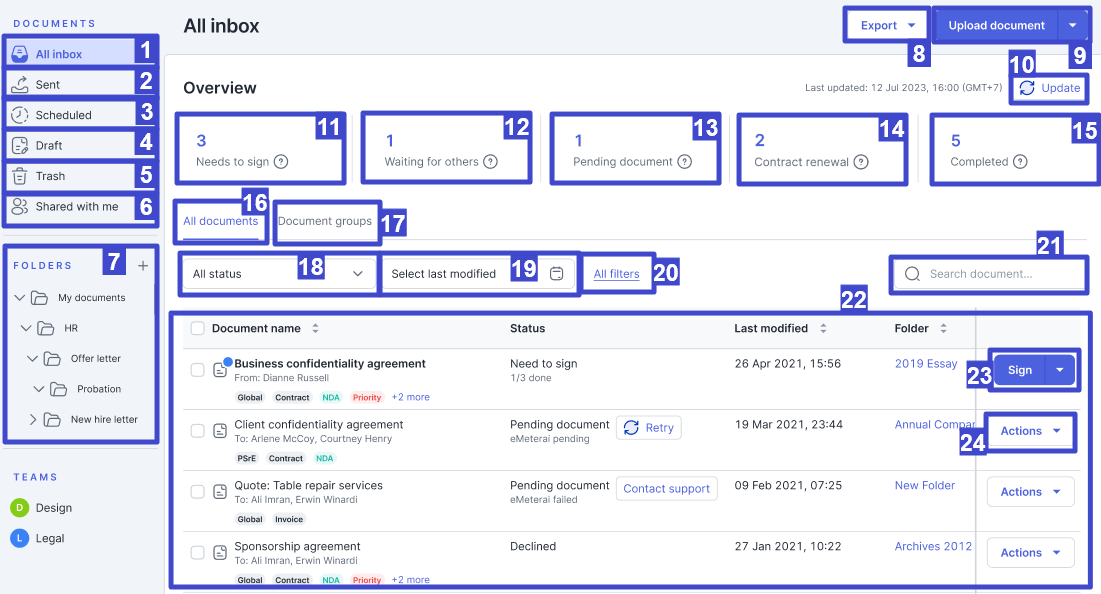
| No. | Button Name | Description |
| 1 | All inbox | Contains information about documents that you have received and documents that you have sent. |
| 2 | Sent | Contains information about documents that have been sent. The Sent tab displays the signing status of your documents, indicating whether they have been signed. If a document has been signed, its status will become completed. |
| 3 | Scheduled | Contains information about documents scheduled for signing. |
| 4 | Drafts | Contains information about documents that you have not completed and whose information still needs to be completed. |
| 5 | Trash | Contains deleted documents. Documents in the trash will be stored for 7 days. |
| 6 | Shared with me | Contains documents shared with you. |
| 7 | Folders | Displays the folders you have created to organize your documents. You can create new folders and subfolders by clicking the "+" icon. |
| 8 | Export | Click to export reports in CSV format and view signing insight. |
| 9 | Upload document | To upload documents to be signed and sent to the relevant parties. |
| 10 | Update | Click to update the data. |
| 11 | Needs to sign | Displays information about how many documents still need to be signed. |
| 12 |
Pending document
|
Displays information about how many documents have been sent and have not yet been signed by other people. |
| 13 | Expiring soon | Displays information about how many documents are approaching their contract expiration date. |
| 14 | Contract Renewal | Displays information about how many document contracts need to be renewed. |
| 15 | Completed | Displays information about how many documents have been signed. |
| 16 | All documents |
Tab for viewing a list of all documents from various categories or statuses. For example, individually or mass-uploaded documents (group). On this page, you can select document names one by one using the checkbox next to the name, or the checkbox next to the Document name table heading to select all documents at once. This allows you to sign all selected documents simultaneously. |
| 17 | Document groups | Tab for viewing a list of Group documents containing multiple documents uploaded as a group. |
| 18 | Status filter | To filter documents by status. |
| 19 | Select last modified | To filter documents by date. |
| 20 |
All filters |
Click to filter documents by:
|
| 21 | Search | To search for a document name. |
| 22 | Document index | Displays all documents received in your account, whether they have been signed or still need to be signed. |
| 23 | Sign | Click to sign the document. |
| 24 | Actions |
To perform actions on documents:
|
B. Document Details Page Display
| No. | Feature Name | Description |
| 1 | All inbox | Redirects to the All inbox page. |
| 2 | Document name | Displays the name of the document currently open. |
| 3 | More actions | Displays various action options that can be performed on the document. |
| 4 | Sign | Starts the document signing process. |
| 5 | General informations | Displays general information about the document, such as tags, Reference ID, document owner, document creator, creation date, sent date, and document status. |
| 6 | Overview | Displays a summary of information related to the document. |
| 7 | Activities | Displays the history of activities that occurred on the document. |
|
In the Activities section, you can also access the Audit Trail or the activity log of electronic signatures on the document, consisting of: | ||
| 8 | Summary | Displays the summary and data summary results of the document. Learn more here. |
| 9 | Metadata | Displays the document's metadata information. |
That concludes the overview of the Document menu. Next, learn how to create, upload, and send documents (global sign) here.

