In Mekari Sign, you can integrate Google Drive or OneDrive. This integration makes it easy for you to select files stored in Google Drive or OneDrive to be uploaded to Mekari Sign. Here are the steps.
Important
Integration can only be done by one account for each cloud service (OneDrive or Google Drive).
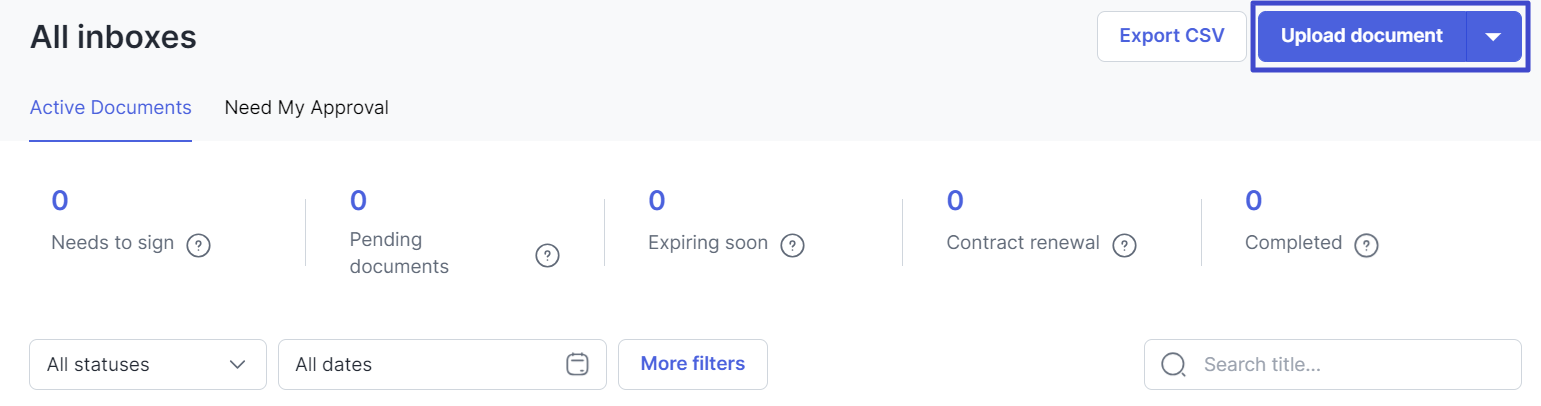
In the Document menu, click the “Upload document” button.
A. Google Drive Integration
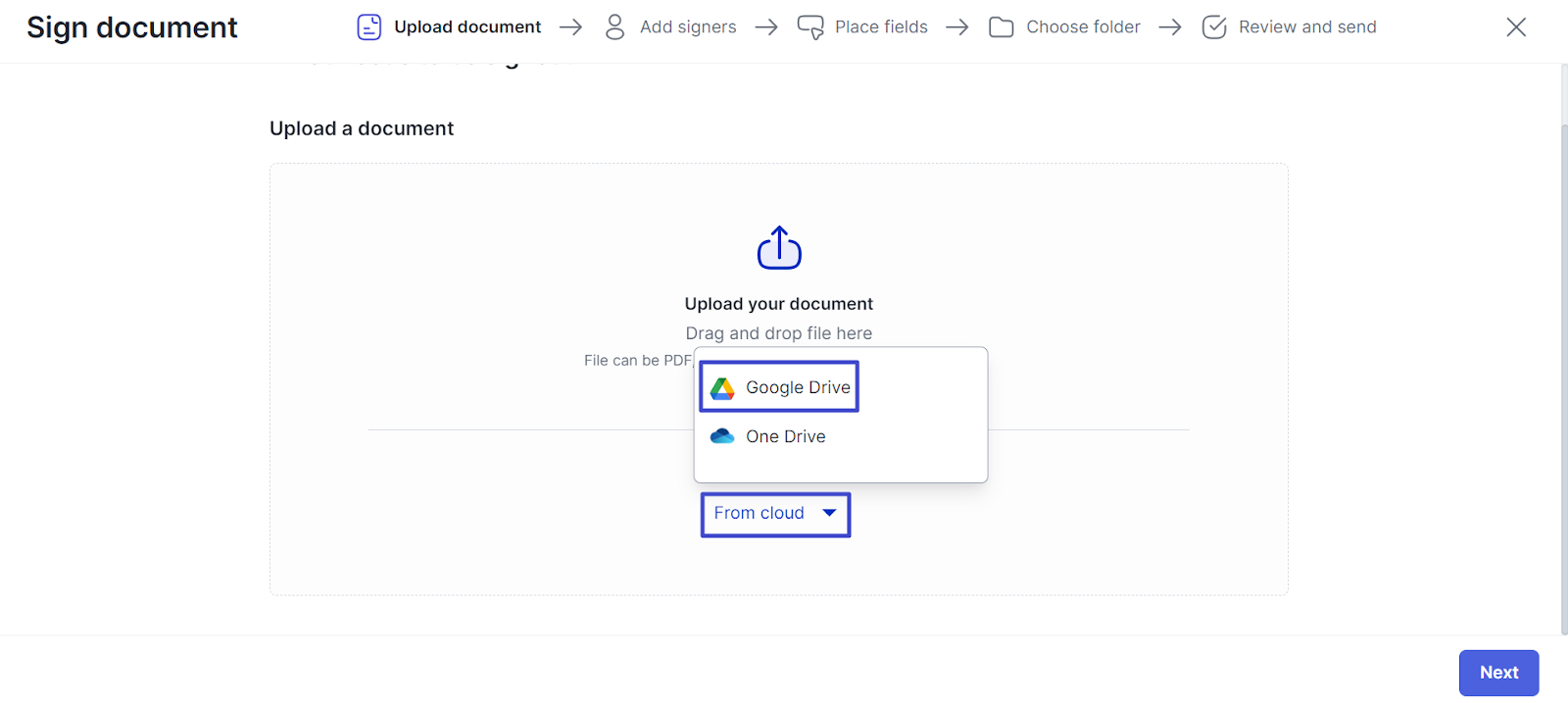
Then click the “From cloud” button and select Google Drive.
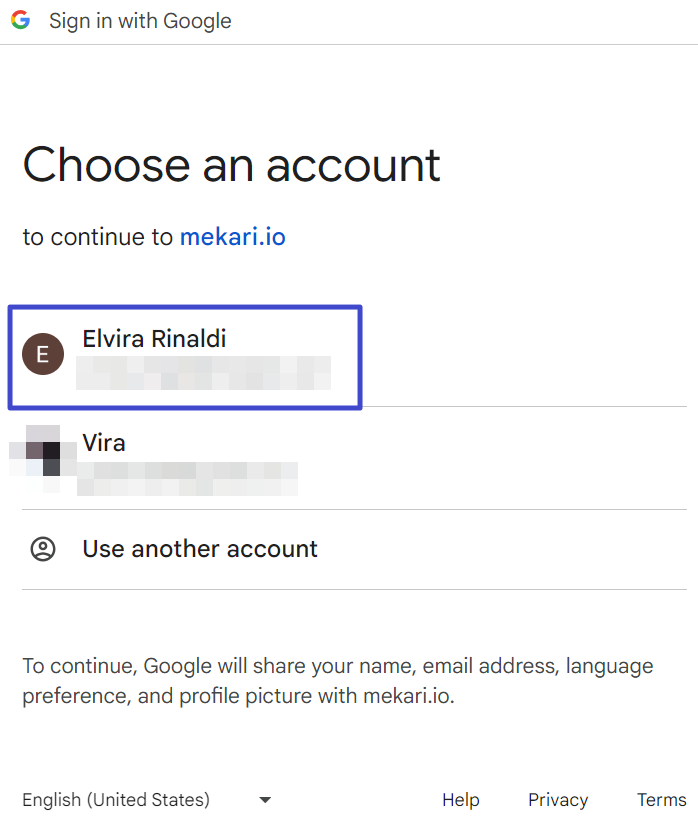
A pop-up will appear to log in to your OneDrive account, then select the email you want to connect with Mekari Sign.
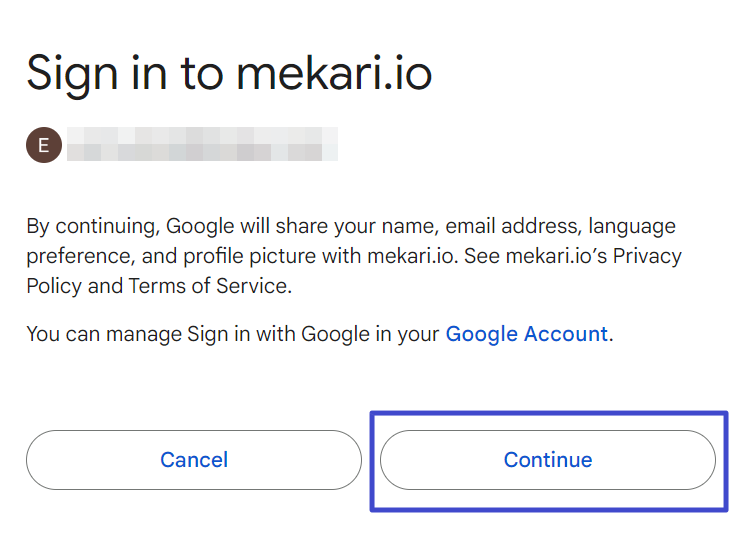
You will see an information page like this and click “Continue”.
Then you will enter the approval page regarding the access that will be shared with Mekari Sign, and click “Continue” to proceed.
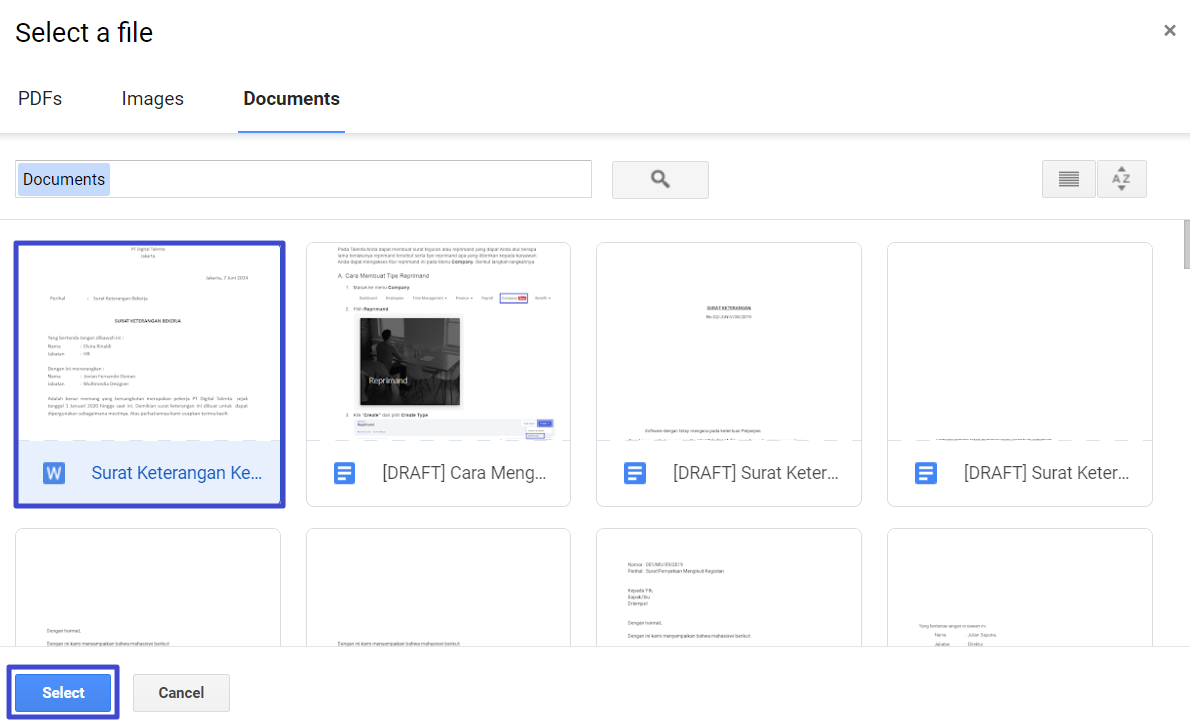
Next, you will see the Google Drive page view, where you can select which files to upload to Mekari Sign.
Then click “Select” to start uploading.
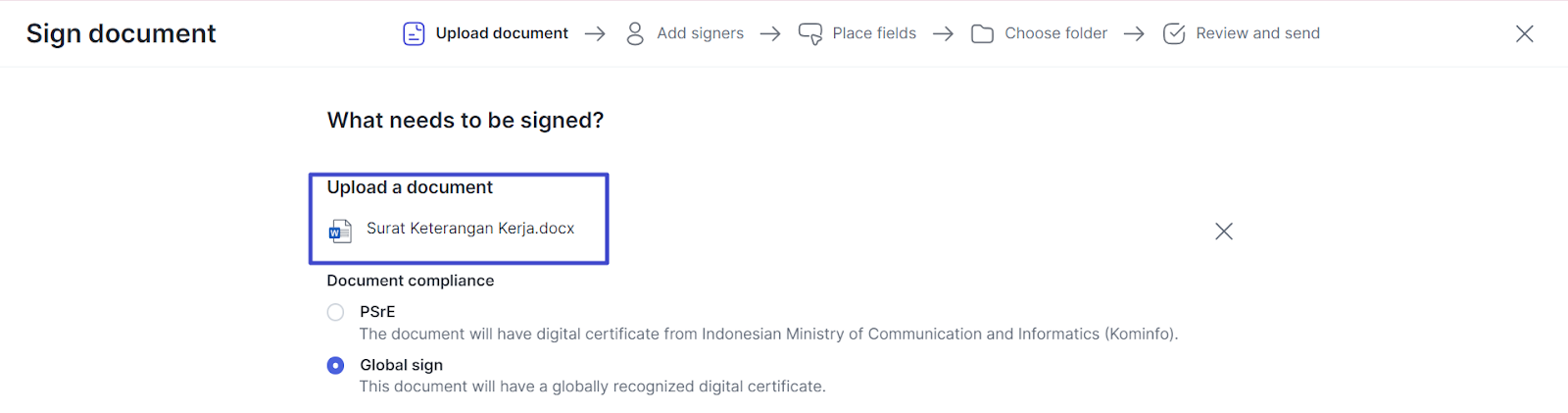
Your file has now been successfully uploaded to Mekari Sign.
B. OneDrive Integration
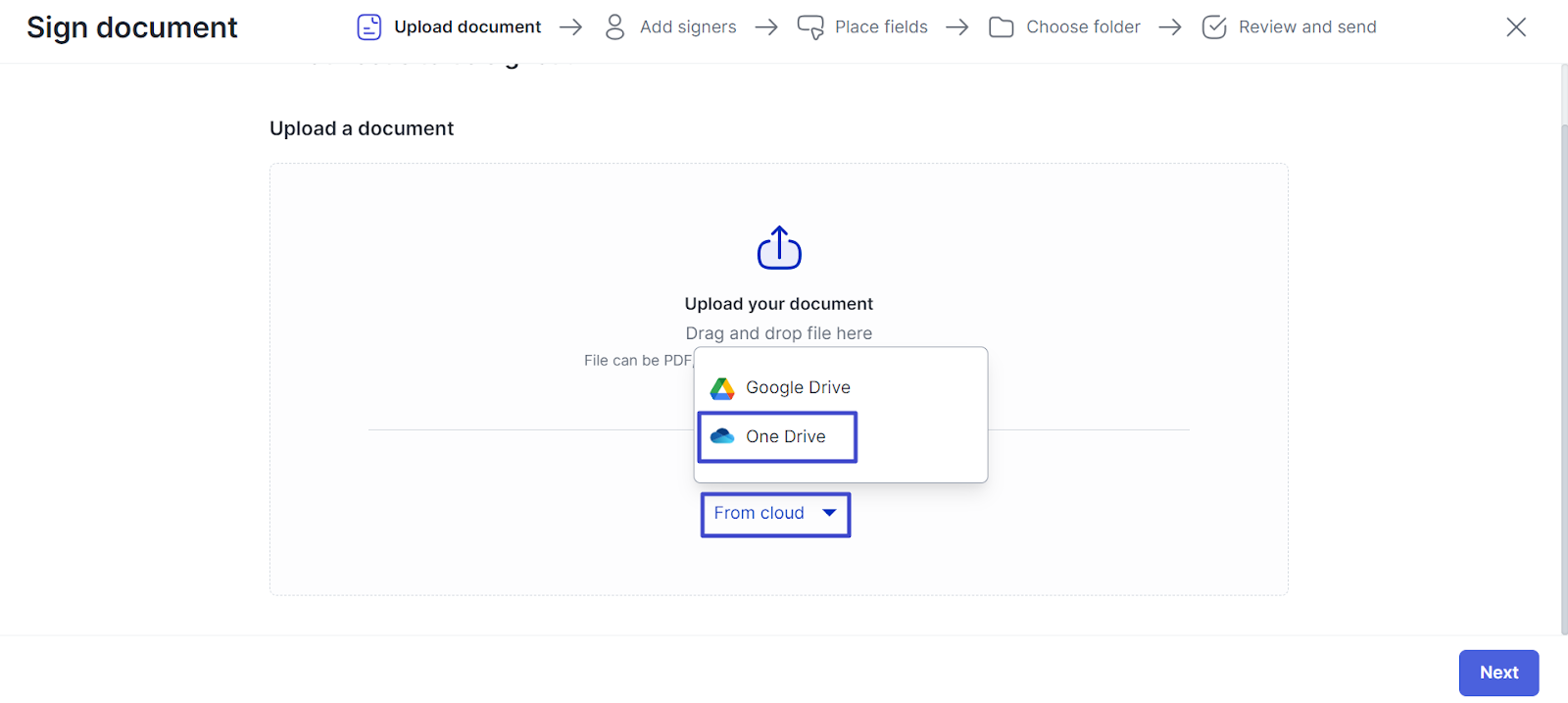
To integrate Mekari Sign with OneDrive, click the “From cloud” button and select OneDrive.
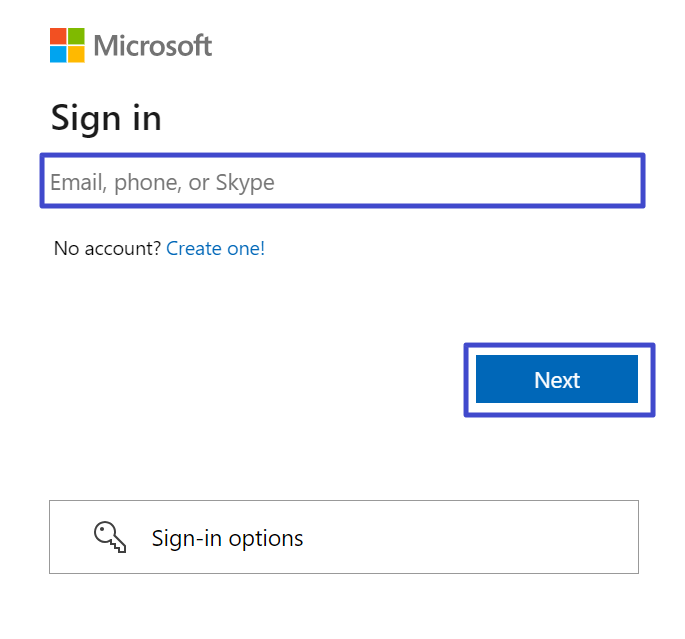
A pop-up will appear to log in to your OneDrive account, then enter your registered email or phone number and click “Next”.
Enter your OneDrive password and click “Sign in”.
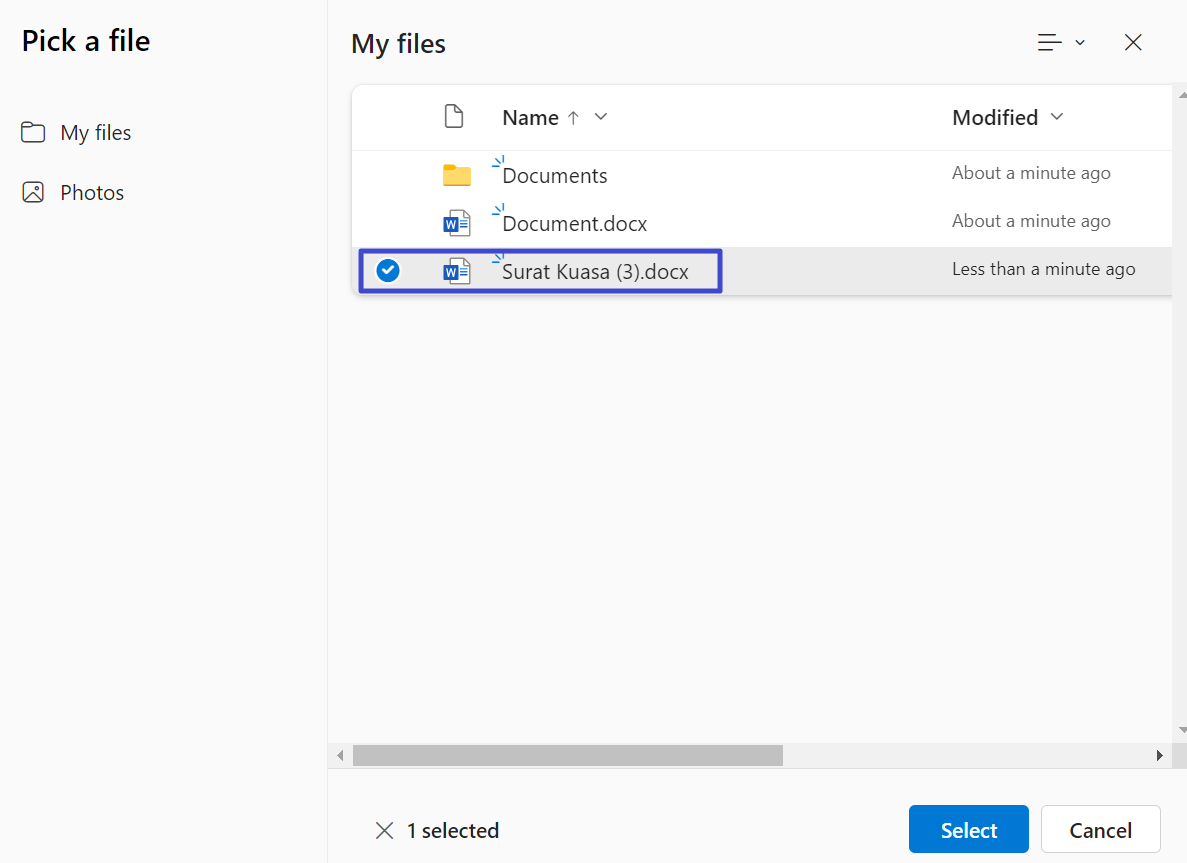
Next, you will see the OneDrive page view, where you can select which files to upload to Mekari Sign.
Then click “Select” to start uploading.
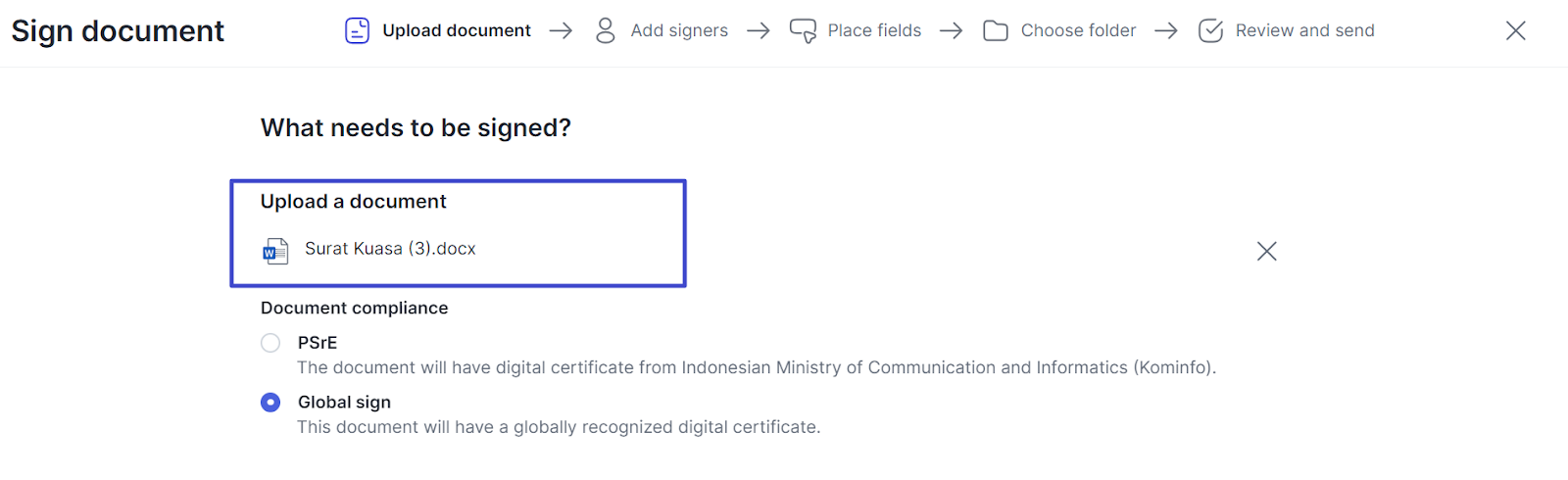
Your file has now been successfully uploaded to Mekari Sign.
You can learn the next steps to upload and send documents here.
C. Remove Integration
If you want to integrate another account (Google Drive/OneDrive), you first need to remove the integration you have done. Here are the steps.
Go to the Settings menu.
Then select the Integration tab.
-
Next, click the “three dots” icon and select Disconnect on the integration you want to remove.
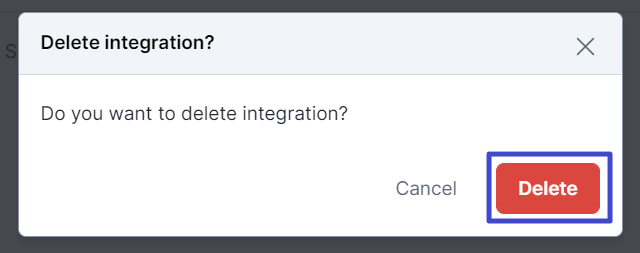
A confirmation pop-up will appear; click “Delete”.
The account integration has now been successfully removed, and you can integrate another Google Drive/OneDrive account.